How do I set default QR code styles?Updated 5 days ago
Can I set default styles for my QR codes?
Yes. In QuiQR Codes, you can set default appearance options from the app’s Settings screen.
These options are grouped under Appearance defaults, where you can choose your preferred colors, shapes, border thickness, and—if you are on the Core plan—a default logo upload option.
Where to find the default style settings
In Shopify admin, go to Apps and select QuiQR Codes.
In the app navigation, select Settings.
On the Settings screen, scroll to Appearance defaults.
What you can set by default
Colors
In the Colors section, you can set:
Background — the background color behind the QR code pattern
Pattern color — the color of the QR code pattern itself
You can either type a hex value or use the built-in color picker.
Enter hex values with the leading #, for example #FFFFFF or #000000.
Pattern
In Pattern, choose the default shape for the QR code pattern:
Square - The pattern will be made up of squares.
Circle - The pattern will be made up of circles.

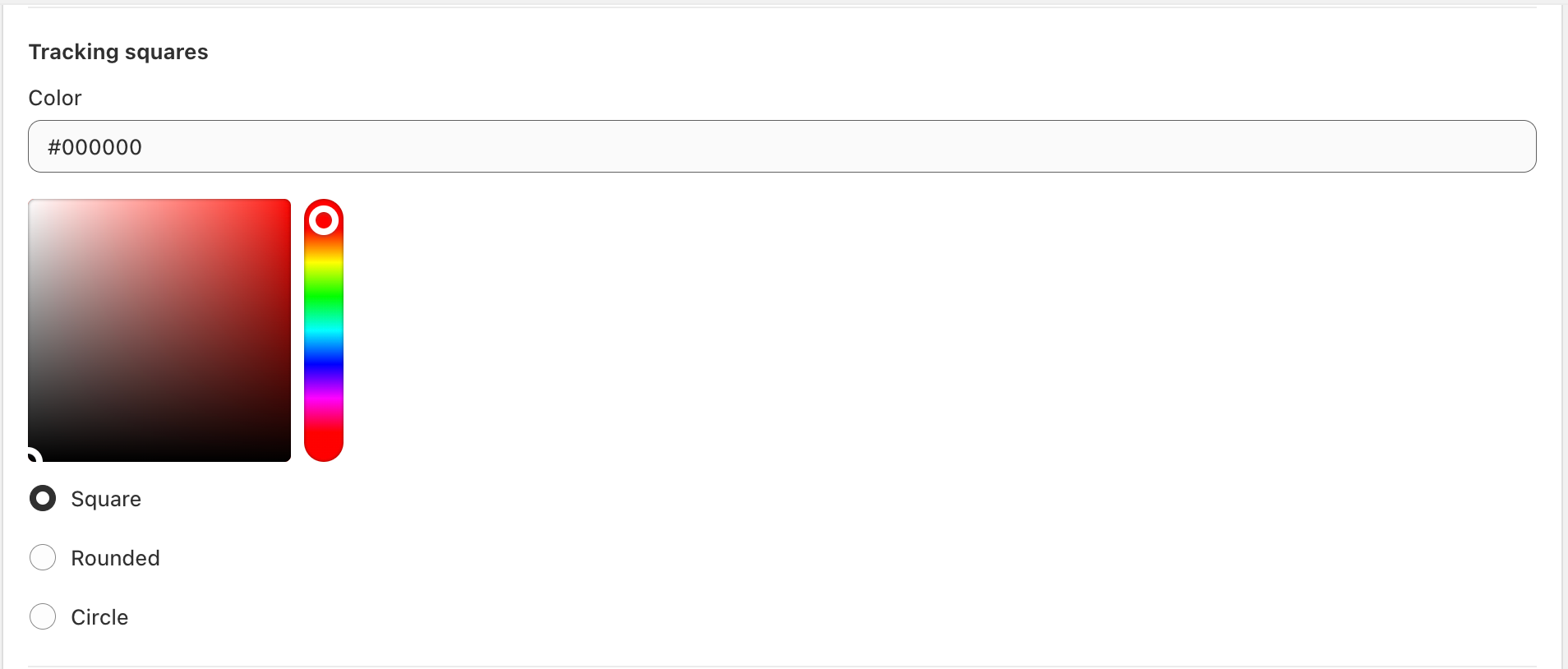
Tracking squares
In Tracking squares, you can control the appearance of the large corner markers used in the QR code.
Colour — set the default colour for the corner squares
Shape — choose Square, Rounded, or Circle. Please note that Circle changes the markers to be made up of circles (like the pattern setting mentioned earlier).

Canvas
In Canvas, choose whether the full QR code sits inside a:
Square
Circle

Border
In the Border section, use the Thickness slider to add or adjust a border around the canvas.

Custom Logo
If you are on the Core plan, you can also upload a default logo in the Custom Logo section.
Under Image Upload, select Add file and upload a supported image file.
.jpg.png.webpMaximum file size: 5MB
