UTM tracking for QR codesUpdated 2 months ago
Use UTM tracking in QuiQR Codes to append campaign parameters to a QR code’s destination URL when it is scanned. This makes it easier to measure performance in third-party analytics tools such as Google Analytics.
INFO
Plan availability: UTM tracking is available on the app’s Core plan.
What UTM tracking does
When UTM tracking is enabled, QuiQR Codes adds campaign parameters to the URL your QR code opens. This helps analytics tools identify where the visit came from and which campaign, placement, or promotion drove the scan.
The available parameters are:
utm_source— Campaign sourceutm_medium— Campaign mediumutm_campaign— Campaign nameutm_term— Campaign termutm_content— Campaign content
Before you start
You can enable UTM tracking while creating a new QR code or by editing an existing one.
To create a new code, go to Apps → QuiQR Codes, then select Create QR Code from the Dashboard.
To update an existing code, go to Apps → QuiQR Codes → Manage QR Codes, then open the code you want to edit.
NOTE
UTM tracking does not replace your QR code’s destination. It adds tracking values to the existing destination URL when the code is scanned.
Enable UTM tracking
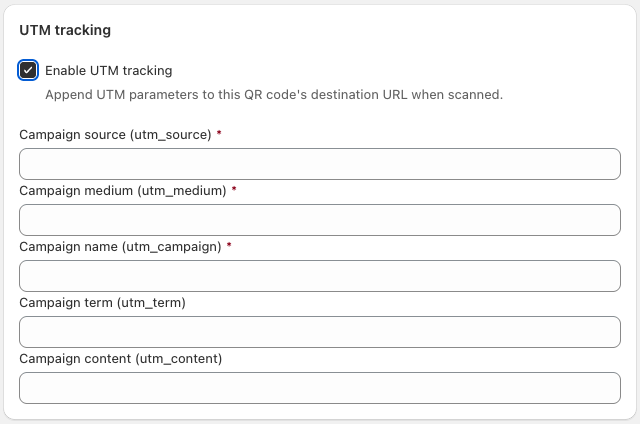
1. Open the QR code form - Start a new code from Dashboard → Create QR Code, or open an existing code from Manage QR Codes.
2. Turn on UTM tracking - In the UTM tracking section, select the Enable UTM tracking checkbox.
3. Enter the required campaign fields - Fill in Campaign source (utm_source), Campaign medium (utm_medium), and Campaign name (utm_campaign).
4. Add optional campaign details - If needed, also fill in Campaign term (utm_term) and Campaign content (utm_content).
5. Save your changes - Select Save in the top-right corner to apply the UTM settings to the QR code.
What to enter in each field
Campaign source (utm_source): where the visitor came from, such as
qr,poster, orpackaging.Campaign medium (utm_medium): the channel, such as
offline,print, orin_store.Campaign name (utm_campaign): the campaign or promotion name, such as
summer_sale.Campaign term (utm_term): an optional extra label, often used for audience or keyword-style grouping.
Campaign content (utm_content): an optional label to distinguish versions, placements, or creative variations.
Example
If your QR code sends shoppers to a summer promotion, you might use:
Campaign source:
qrCampaign medium:
printCampaign name:
summer_saleCampaign term:
store_windowCampaign content:
blue_poster
When the code is scanned, QuiQR Codes appends these values to the destination URL so tools like Google Analytics can attribute the visit correctly.
TIP
Use consistent lowercase naming, such as summer_sale instead of mixing formats like SummerSale and summer-sale. This keeps your analytics reports cleaner.
Check that it’s working
Save the QR code.
Scan it with your phone.
Confirm the correct page opens.
Check the URL in your browser to make sure the
utm_parameters are present.Review your analytics tool for the new visit or campaign data.
WARNING
If you edit a QR code’s UTM settings, test the live code again after saving so you can confirm the latest parameters are being appended correctly.
Best practices
Use different campaign names or content values for different placements, such as flyers, packaging inserts, or in-store signs.
Keep naming short and consistent so reports are easy to compare.
Always test a scan before printing or distributing a QR code widely.