
QR code to add to cart + discountUpdated 2 months ago
What you’ll build
In QuiQR Codes, you can create a QR code that sends customers to your store with a product already added to their cart and an optional discount code applied.
NOTE
The steps below follow the same flow as the in-app walkthrough: start from the Dashboard, open Create QR Code, choose Add to Cart, select a product variant, then enter a discount and save.
1. Start from the QuiQR Codes dashboard
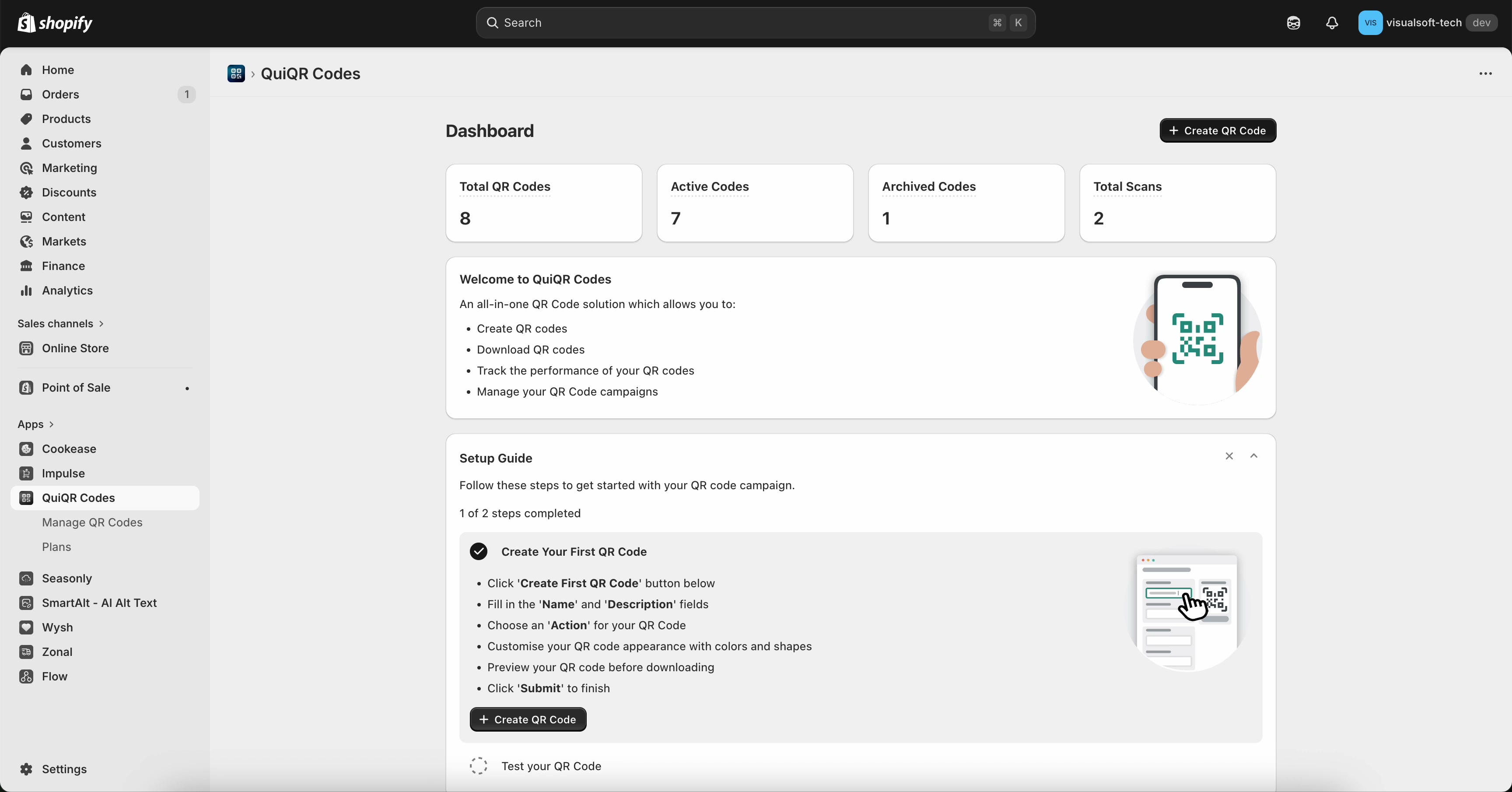
In Shopify admin, open Apps → QuiQR Codes. The Dashboard shows quick stats (like Total QR Codes and Total Scans) and a Setup Guide with a shortcut to create your first code.
2. Create a new QR code
- Open Create QR Code - From the Dashboard, click Create QR Code. (You can also find it from Manage QR Codes.)
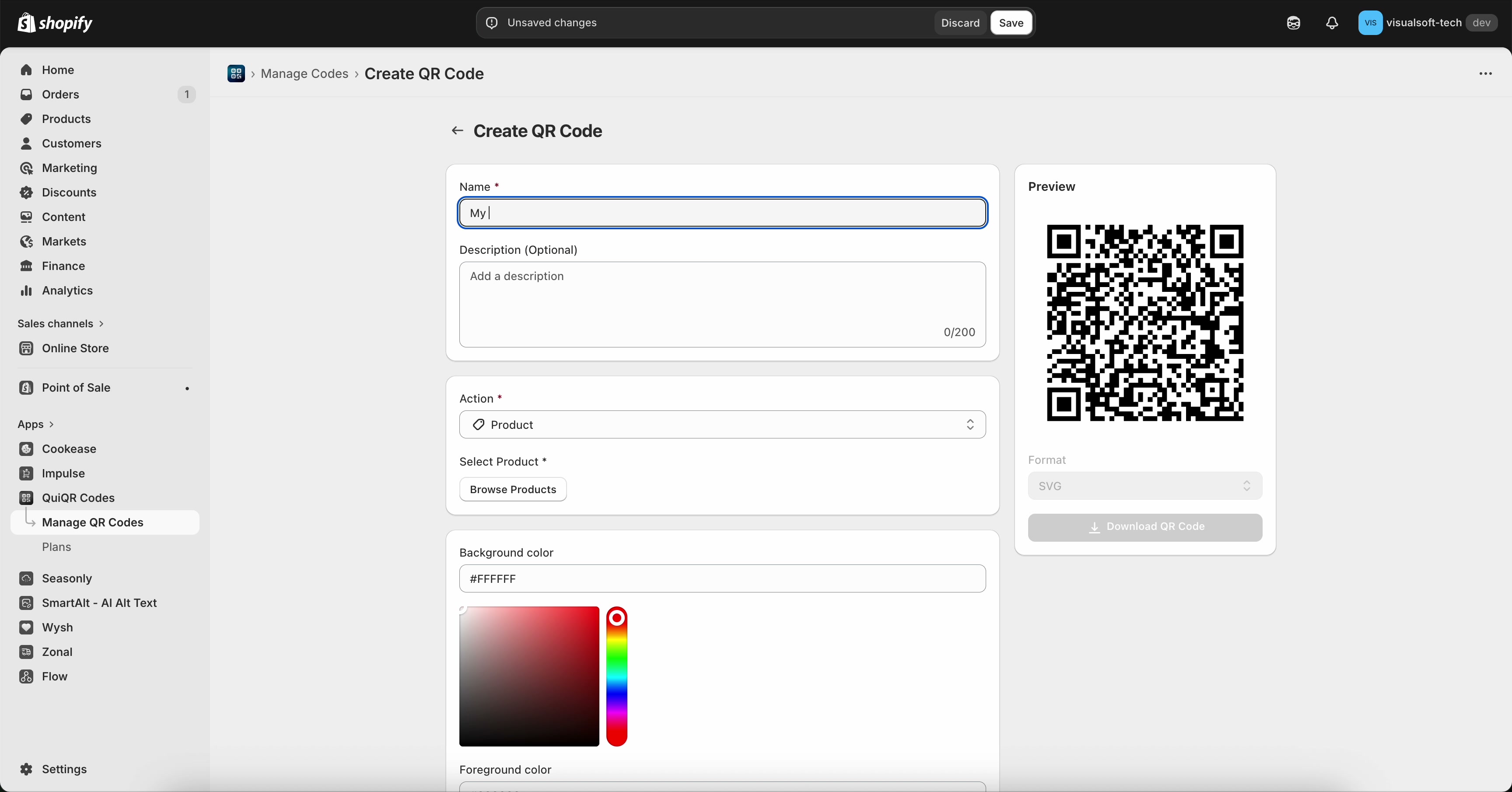
- Name and describe the QR code - On the Create QR Code page, fill in:
Name (required) — used to identify the code in Manage QR Codes.
Description (Optional) — helpful for campaign notes, placement, or intent.
As you edit, the Preview panel updates on the right.
3. Choose the “Add to Cart” action
In the Action dropdown, select Add to Cart.
INFO
The Action menu includes options like Product, Collection, Add to Cart, and Custom Page. For this walkthrough, choose Add to Cart so scanning the QR code preloads a cart with the item.
4. Select the product variant to add
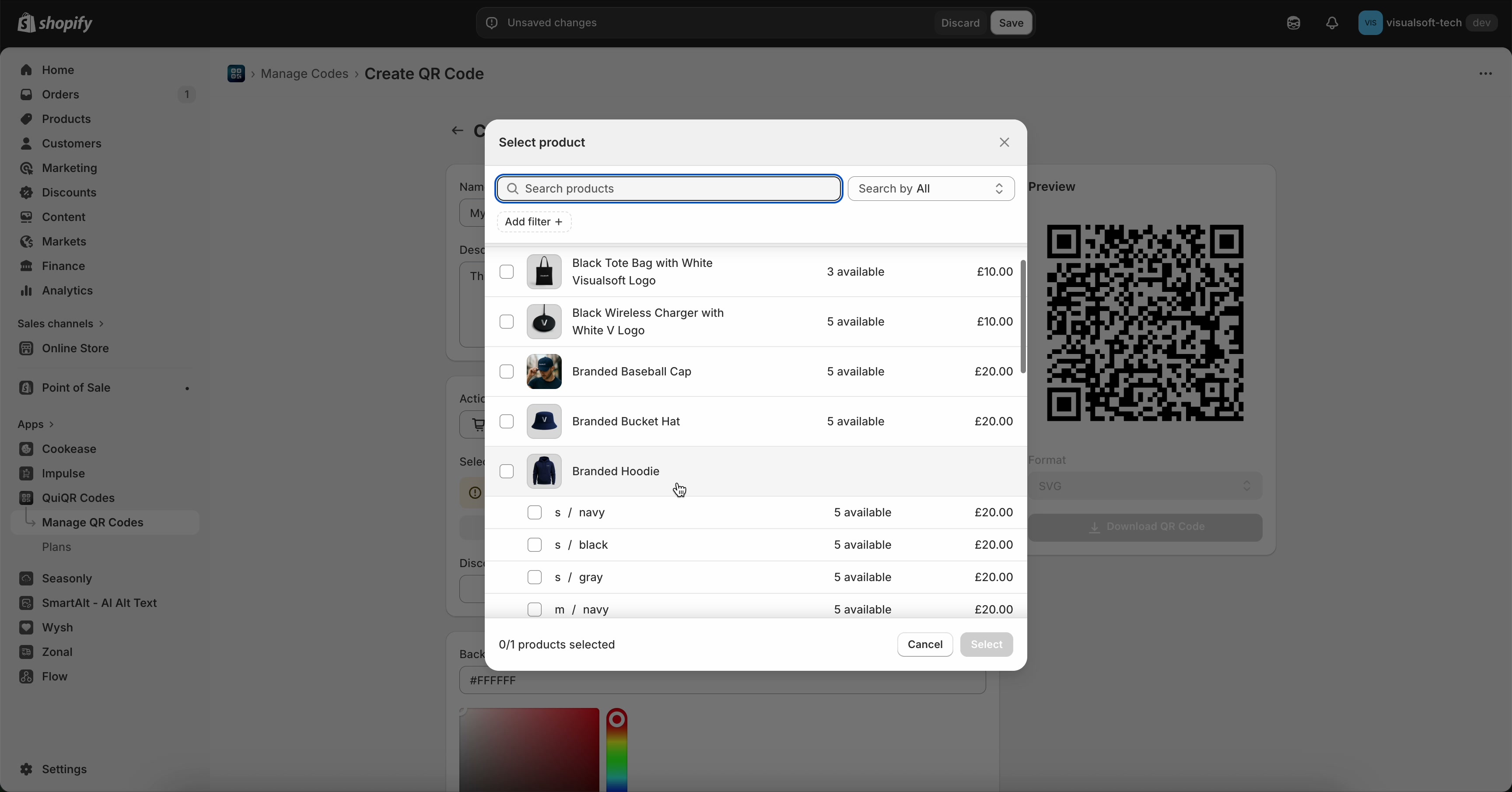
- Browse Products - Under Select Product, click Browse Products (or Change Product if one is already selected).
- Pick the item in the Select product modal - In the Select product modal, you can search using Search products, then check the item you want and click Select.
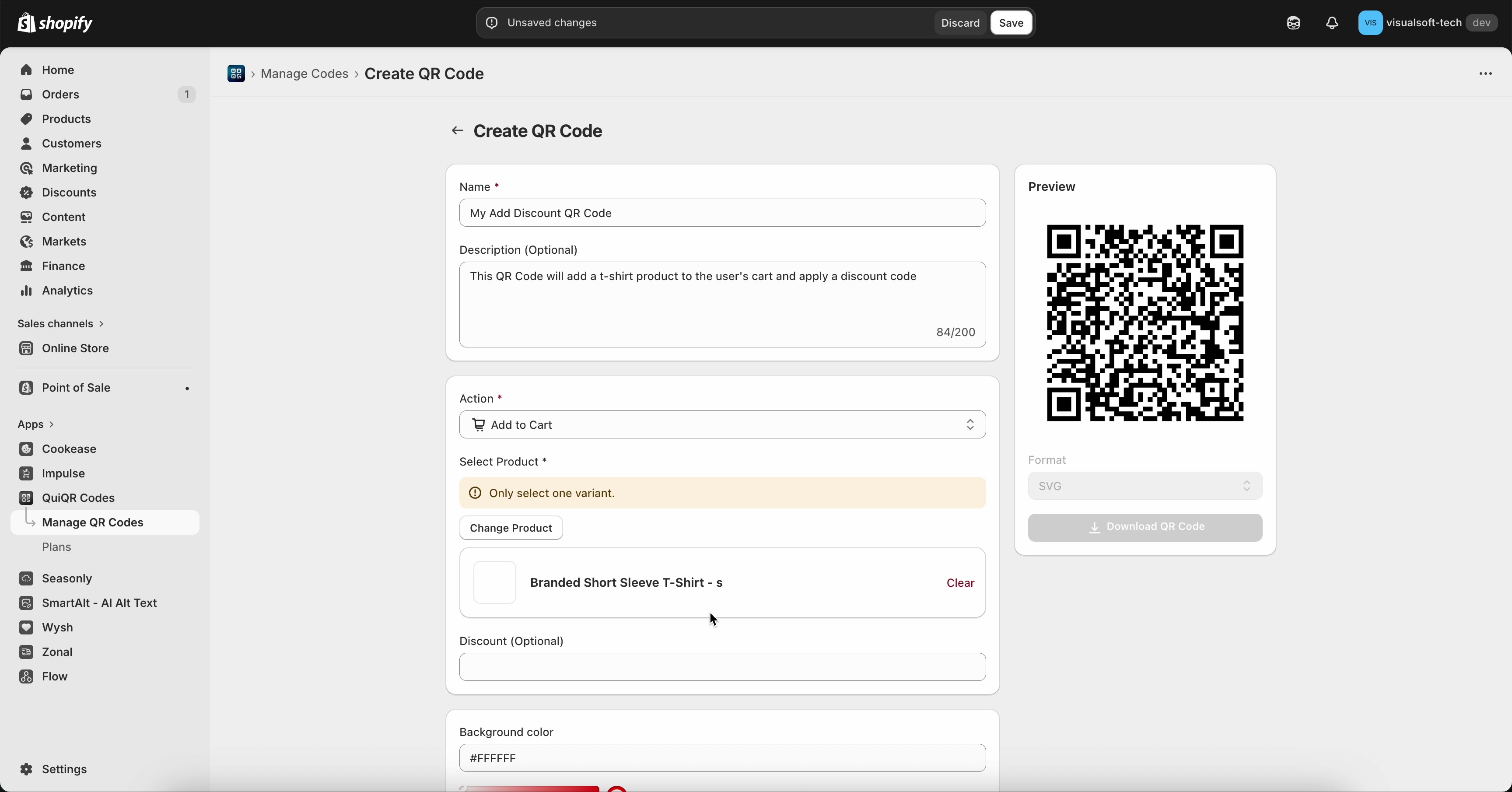
3. Confirm the selected variant - After selecting, the product appears in the form under Select Product.
WARNING
When using Add to Cart, the form may show the reminder Only select one variant. Make sure you choose a single product variant (not multiple variants) so the QR code adds the correct item.
5. Add a discount code (optional)
In Discount (Optional), enter the discount code you want applied when the QR code is scanned (for example, 50OFF).
TIP
Use a code that already exists in Shopify under Discounts, and double-check spelling and capitalisation so it applies correctly.
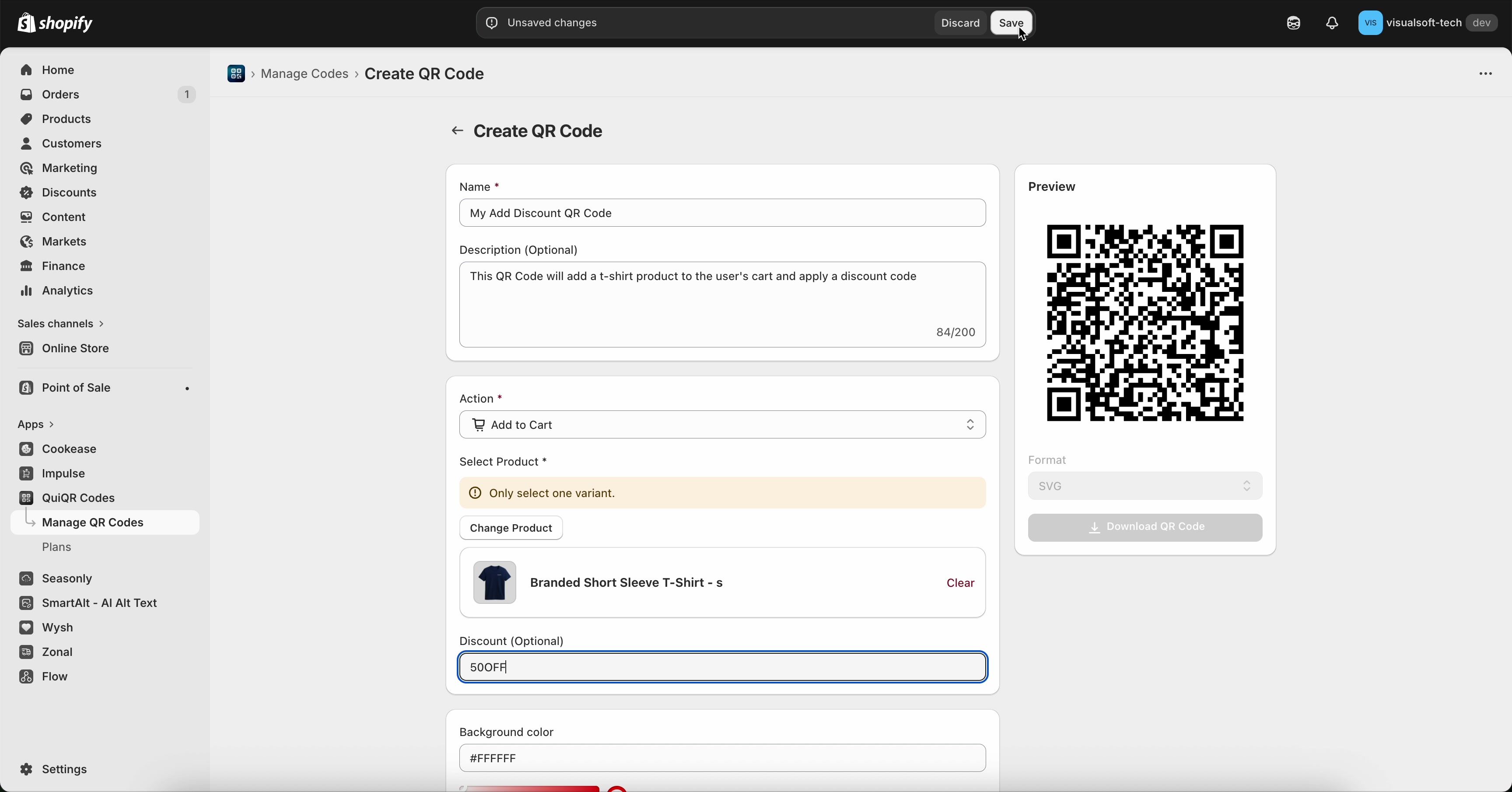
6. Save the QR code
When you’re done, click Save in the top bar. If you need to abandon changes, use Discard.
NOTE
After saving, you can return to Manage QR Codes to find your code later and track performance on the Dashboard (for example, Total Scans).
What happens when customers scan
The QR code opens your store and adds the selected product variant to the cart (because Action is set to Add to Cart).
If you entered a value in Discount (Optional), the code is included so the discount can be applied during the customer’s checkout flow (as long as it’s valid and eligible).
Troubleshooting
Issue - Discount didn't apply
Confirm the code exists in Shopify under Discounts and is currently active.
Make sure the code exactly matches what you entered in Discount (Optional).
Check discount eligibility rules (for example, minimum purchase requirements, product eligibility, usage limits, or expiration).
Issue - Wrong item added to cart
Verify the selected item under Select Product is the correct variant.
If needed, click Change Product to reselect.
Follow the in-form guidance: Only select one variant.