QR code for product bundleUpdated 6 days ago
What this QR code does
In QuiQR Codes, you can create a QR code that adds a bundle of products to the customer’s cart when it is scanned. The Bundle action is designed for offers where you want shoppers to add multiple product variants at once instead of sending them to a single product page.
With this action, you can choose between 2 and 20 product variants. You can also add a discount so the bundle is added with a price reduction.
NOTE
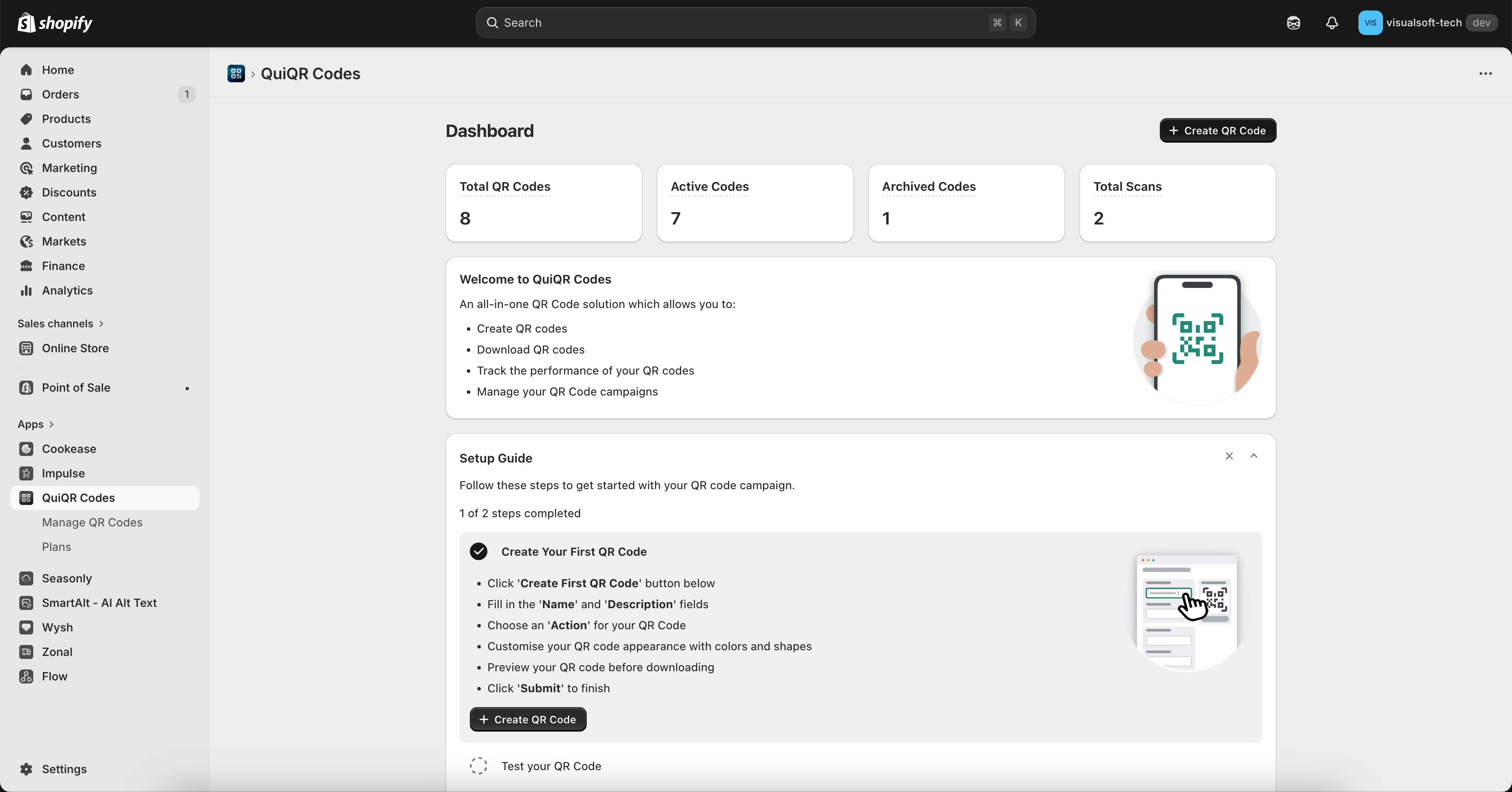
This guide follows the same in-app flow used across QuiQR Codes: open the Dashboard, click Create QR Code, choose the Action, add your products, then click Save.
Where to create a Bundle QR code
In Shopify admin, go to Apps and open QuiQR Codes.
From the Dashboard, click Create QR Code. You can also reach the QR code builder from Manage QR Codes.
Create a Bundle QR code
1. Open the Create QR Code page - From the Dashboard, click Create QR Code. This opens the Create QR Code screen with the form on the left and a live Preview on the right.
2. Enter the basic details - Complete the top fields before choosing your bundle:
Name * — required. Use a clear internal name so you can find the code later in Manage QR Codes.
Description (Optional) — add notes such as where the code will be used or what offer it promotes.
As you type, the Preview panel updates automatically.
3. Choose Bundle in the action menu - Open the Action * dropdown and select Bundle. This tells QuiQR Codes that the QR code should add multiple product variants to the cart when scanned.
4. Select the bundle variants - Use the product picker to choose the variants you want to include in the bundle. The selector uses the same product browsing flow found elsewhere in QuiQR Codes, including the Select product modal, Search products, filters, and the Select button. Your bundle must contain at least 2 product variants and can include up to 20 product variants.
5. Review the selected products - After selection, review the variants shown in the form. Make sure the exact sizes, colours, or other variant options are correct before saving. If something is wrong, reopen the selector and update the bundle before you continue.
6. Add an optional discount - If you want the bundle to be added with a price reduction, select your Shopify discount in the discount field shown for the bundle setup.
7. Save the QR code - When the bundle looks correct, click Save in the top bar. If you do not want to keep your changes, click Discard.
What customers experience
When a customer scans a Bundle QR code:
they are taken to your store,
the selected bundle variants are added to their cart, and
if you included a valid discount, the discount is applied as part of the cart or checkout flow.
INFO
The Bundle action is useful for pre-built outfits, gift sets, multi-item promotions, starter packs, or any offer where customers should add several variants in one scan.
Tips for setting up bundles
Use a descriptive Name such as
Summer bundle - window displayorStarter pack - flyer QR.Double-check that you selected variants, not just the parent products, especially when size or colour matters.
Test the QR code on a phone before printing to confirm all intended items are added to the cart.
If you apply a discount, confirm it is active in Shopify and eligible for the bundle contents.
Before you publish or print
Confirm the bundle contains between 2 and 20 variants.
Check that each selected variant is available to purchase on your storefront.
Review the Preview panel before saving.
If you customise Background color or Foreground color, keep strong contrast so the code scans reliably.
Troubleshooting
Q. The wrong items are being added to cart
A. Open the QR code in Manage QR Codes and review the selected bundle variants carefully. If needed, reselect the products and save again. This is especially important for products with multiple variant options such as size, colour, or material.
Q. The discount is not applying
A. Check that the discount exists in Shopify, is active, and is entered exactly as expected in QuiQR Codes. Also confirm the discount is eligible for the products in the bundle and has not expired or reached a usage limit.
Q. The QR code scans but the cart is not correct
Test the code on a storefront session that is not affected by old cart contents or admin login state. If needed, clear the cart and test again. You should also verify that all selected variants are still available on your online store.