
Fix invalid hex colour errorUpdated 2 months ago
Why this error appears
When you edit a QR code in QuiQR Codes, the Background color and Foreground color fields only accept hex color values in the correct format.
If you type a value like FFFFFF or 000000 without the leading #, QuiQR Codes shows this error when you try to save:
Background color must be a valid hex color (e.g. #FFFFFF)
or
Foreground color must be a valid hex color (e.g. #000000)
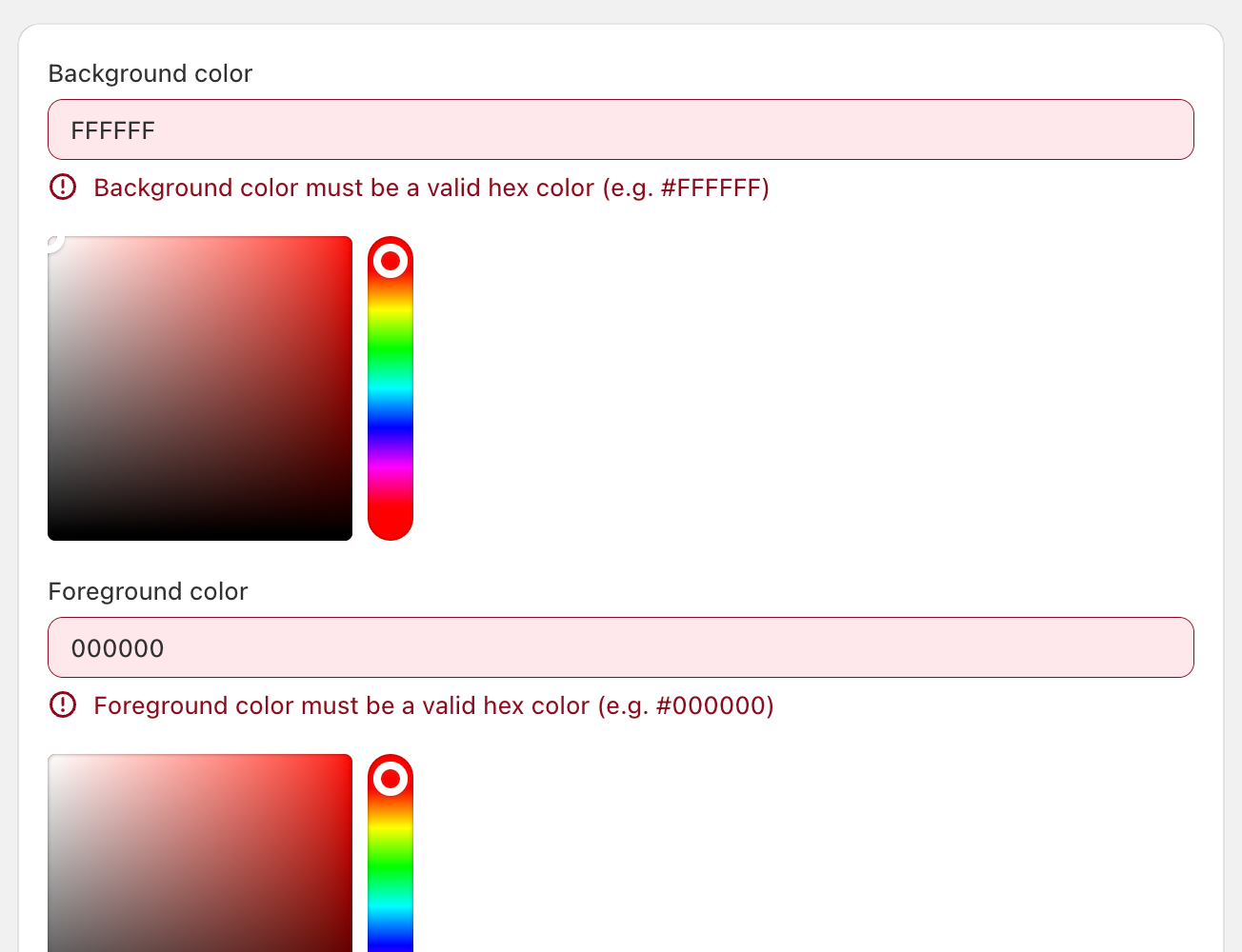
Where to fix it
You can update these fields from the Edit QR Code screen in QuiQR Codes.
1. Open QuiQR Codes - In Shopify admin, go to Apps and select QuiQR Codes.
2. Go to manage QR codes - In the left navigation under QuiQR Codes, select Manage QR Codes.
3. Open your QR code - Select the QR code you want to update to open Edit QR Code.
4. Find the colour fields - Scroll to the design section and look for Background color and Foreground color.
How to fix the value
Add a # at the beginning of the hex code before selecting Save.
Use
#FFFFFFinstead ofFFFFFFUse
#000000instead of000000Use
#1BAF31instead of1BAF31
TIP
If you are copying a colour from another tool, check whether it included the #. Some design tools show the value without it.
Save the QR code again
After correcting the value in Background color or Foreground color, select Save in the top bar again.
If the value is valid, the QR code should save normally and the Preview will continue showing your updated design.
Use the colour picker instead
If you do not want to type the hex code manually, you can use the built-in color picker beside each field. This helps avoid formatting mistakes.
NOTE
The colour picker fills the field in the correct format automatically, so it is a good option if you keep seeing this validation error.
Quick checklist
You are editing the code from Manage QR Codes → Edit QR Code
The value starts with
#The field contains a full hex color such as
#FFFFFFor#000000You selected Save after updating the field